Introduction
As a machine learning engineer, I spend most of my time working with AI agents for data-driven discovery. I usually interact with closed-source models through APIs, which makes it easy to ignore what’s happening under the hood. Still, I’ve always been curious about what it actually takes to set up and run a LLM on a GPU - along with the trade-offs involved in serving one.
In this blog, I’ll run a small foundation model using llama.cpp on Modal’s GPUs and walk through the practical considerations that come up when serving an LLM.
Rather than jumping straight to a production inference server, we’ll build from a minimal proof of concept to understand Modal’s execution model before hardening it. Along the way, we’ll touch on practical topics like quantization, model formats, and hardware trade-offs that influence real-world deployments.
Why running LLMs locally is hard
The main reason running LLMs locally is difficult comes down to hardware constraints, especially around memory and compute. At their core, large language models are dominated by matrix multiplications, which need to be performed extremely efficiently.
Modern GPUs excel at this kind of workload because they provide massive parallelism for matrix operations (via CUDA + Tensor Cores) and high memory bandwidth, which are critical for transformer attention and feed-forward layers. LLMs are essentially massive stacks of matrix multiplications, where the matrices represent the learned weights of the network. As model size increases, these weight matrices grow rapidly, leading to enormous memory and compute demands.
Even during inference, loading and multiplying these matrices requires tens of billions of parameters to be moved through the GPU repeatedly. For example, GPT-3 has 175 billion parameters, and even much smaller “local” models in the 7B-13B range already push the limits of consumer hardware. A simple rule of thumb for estimating the lower bound on VRAM required for inference is:
VRAM (in bytes) ≈ Model Size (in Billion parameters) × Bytes per parameterIn full precision (FP32), an 8B model requires ~32GB of VRAM. Even in FP16, this drops only to ~16GB, leaving very little headroom for activations, KV cache, and context. The maximum VRAM available in a consumer GPU is 24GB in Nvidia GeForce RTX 4090 (as of Dec’25). On CPUs, even if the model fits in system RAM, the lack of parallelism and memory bandwidth makes inference prohibitively slow.
In practice, this means that running LLMs locally is often constrained not by raw compute alone, but by available GPU VRAM and how efficiently the model can be represented - typically through techniques like quantization.
| Model size | System RAM (recommended) | VRAM needed (FP16 / full precision) | Typical VRAM needed (quantized) | Comments / Notes |
|---|---|---|---|---|
| Small (~7B parameters) | ~16 GB RAM is often enough; 24-32 GB gives smooth operation. | ~12-16 GB (or more) | ~6-8 GB (with 4-bit / 4-bit-q quantization) | Good “entry-point” for local LLMs; many consumer GPUs suffice. |
| Medium (~13B parameters) | ~32-64 GB RAM recommended for stable performance. | ~24-30 GB VRAM (or more) if using FP16/FP32. | ~10-12 GB (with 4-bit / efficient quantization) | Sweet spot: powerful but still potentially doable on high-end consumer hardware. |
| Large (~30B–70B parameters) | ~64 GB RAM (or more) for some configs even 128 GB+ recommended. | ~48-80+ GB VRAM needed for full-precision large models. | ~20-40 GB VRAM (with aggressive quantization & possibly offloading) | Often requires multi-GPU or very high-end workstation / consumer-workstation GPU. |
Approximate hardware requirements by model size. These are rough estimates and depend heavily on the model architecture, quantization method, and inference framework.
You can use this VRAM calculator to calculate hardware requirements for local open source LLMs.
Quantization
For this post, we will use the Qwen3-8B model as our working example. Qwen3-8B is a good representative of modern small-sized LLMs: it is good enough to demonstrate real memory and performance constraints, yet small enough to be deployable on a single GPU. Our target hardware is the NVIDIA L4 GPU, which offers impressive inference performance.
As you can see in the above table, LLMs (even smaller ones) are enormous and require considerable GPU to fit and function properly. This is where “Quantization” comes into the picture.
Quantization is a process that reduces the numerical precision of model weights (and in some approaches, activations) in an LLM. Instead of storing parameters as high-precision floating-point values (like FP32 or FP16), you map them into lower-precision formats such as 8-bit integers (INT8), 4-bit integers (INT4), or even lower.
Quantizations are of two main types:
- Quantization-Aware Training (QAT): We simulate low-precision effects during training so the model learns to handle them. It needs more training effort, but usually gives better accuracy after quantization.
- Post-Training Quantization (PTQ): We train the model normally, then convert weights/activations to lower precision after training. This is simpler and fast compared to QAT, but may lose accuracy, especially for sensitive models whose accuracy drops noticeably when weights or activations are quantized.
In practice, most open-weight LLMs distributed for llama.cpp use post-training quantization (PTQ), which is why we focus on it here. There are many different PTQ precisions already available for our model:
| Precision | Quantization Format (Model Size in GB) |
|---|---|
| 4-bit | Q4_K_M (5.03 GB) |
| 5-bit | Q5_0 (5.72 GB), Q5_K_M (5.85 GB) |
| 6-bit | Q6_K (6.73 GB) |
| 8-bit | Q8_0 (8.71 GB) |
Precision levels and quantization formats available for Qwen3-8B model on Hugging Face.
The ‘n’ in the precision refers to the amount of bit values each parameter of the model takes on GPU, which means the model weights alone require ~4GB of VRAM as a theoretical lower bound, excluding KV cache, activations, and runtime buffers. Here are some characteristics of each precision level.
- 4-bit: This precision level is the smallest, fastest, uses lowest VRAM, but has most accuracy loss.
- 5-bit: It has better accuracy than 4-bit and still keeps the model very compact
- 6-bit: Often approaches FP16-level quality for many LLMs, especially for chat-style workloads.
- 8-bit: Very close to FP16 in quality. At this point, the memory savings are modest, and many setups prefer FP16 unless INT8 kernels offer a clear performance benefit.
Precision mostly matters for reasoning, maths and long-context stability - the lower the precision, the worse the model performs on these dimensions. Based on this rule:
- 4-bit: It fits everywhere and is okay for chat.
- 5-bit: This one is the sweet spot for many local models.
- 6-bit: This gives “almost full quality”.
- 8-bit: It is just as good and memory intensive that you should just use FP16.
Since we are looking for a chat model for production with good instruction-following and stable outputs, rather than maximum performance on mathematical or benchmark-heavy reasoning tasks, it’s clear that 5-bit precision hits the sweet spot.
This pattern “Q{bits}_{scheme}” is llama.cpp style to name quantization formats. These names describe how many bits are used and how they are used. We have already looked at the bits part, so lets look closely at the scheme part.
_0 (baseline / simple quantization)
- This is the simplest quantization scheme for that bit-width.
- One scale per block (or tensor), minimal metadata.
_K (Block-wise quantization)
- Instead of using one scale for all weights, we split the weights into small groups (”blocks”) and quantize each block independently with its own scale. This gives much better accuracy at low bit-widths and has small compute overhead.
_M (Medium-fidelity)
- Fidelity represents how much information we keep about the original weights. Higher fidelity means more metadata and less quantization noise.
- Within K-quant, there are variants that trade different metrics like memory, compute and accuracy. These variants include
_Sfor small and_Lfor large. _Mrepresents the medium variant that balances accuracy vs memory and is often indistinguishable from higher-bit formats in chat.
As we decided to use the 5-bit precision, it is evident from above discussion that we should go with Q5_K_M format because it provides better accuracy than the baseline Q5_0 format with only a small increase in memory usage.
Modal Fundamentals

Architectural diagram showing main components of Modal based deployment.
I don’t have access to a consumer GPU, so I’ll use Modal’s GPUs instead. Modal is a serverless cloud compute platform that lets you run Python (and other workloads) in the cloud without managing any infrastructure. You can think of it as on-demand compute — CPU or GPU — that spins up quickly, scales automatically, and integrates directly into your code.
I primarily use Modal at work to prototype and deploy both experiments and production systems. I also use it for personal projects like this one, especially since they offer free $30 in credits each month (thanks, Modal!).
At a high level, Modal lets you treat cloud compute as a function call. In a normal Python script, calling a function executes it locally. With Modal, calling the same function using .remote() runs it inside a container in the cloud.
Under the hood, Modal packages your code (similar to building a container image), spins up a container on demand — either cold or warm — executes the function, and then tears it down. You don’t have to manually manage servers, Docker images, or scaling policies. From your perspective, hello.remote() is effectively an RPC call to Modal’s runtime. Things like retries, autoscaling, logging, and observability are handled by the platform. If your function requests GPUs or high-memory machines, Modal provisions those automatically.
import modal

app = modal.App("hello-modal")

@app.function()
def hello(name: str):
    return f"Hello, {name} from Modal!"

if __name__ == "__main__":
    print(hello.remote("backend engineer"))
Typical Local LLM Setup
Running an LLM locally usually boils down to three core components. Different tools package these pieces together in different ways, but the underlying structure is largely the same.
-
Model file / format
This is the file containing the model’s learned weights. Common formats include
.safetensors,.pt, and.gguf. The format you use depends on the runtime you choose. For example,llama.cppexpects models in the.ggufformat. Hugging Face based workflows typically use.binor.safetensorsfiles. Choosing the right format is mostly about compatibility with your execution engine rather than model quality. We can easily convert a raw non-.ggufmodel weights file into.gguf. -
Model runtime (execution engine)
The runtime is responsible for loading the model weights into memory (CPU or GPU) and executing the forward pass during inference. This is where most of the performance and hardware trade-offs live.
Common local runtimes include:
llama.cpp: A lightweight, efficient runtime optimized for local inference, especially for small to medium-sized models. It supports both CPU and GPU execution and works well with quantized models.- PyTorch: Best suited if you want flexibility - debugging, experimentation, or modifying the model itself.
- Hugging Face Transformers: A higher-level Python interface that simplifies model loading and inference, at the cost of some performance overhead.
-
Frontend interface
The frontend is how you actually interact with the model. This can be as simple or as sophisticated as you need. Examples include:
- A Python script or Jupyter notebook
- Hugging Face’s text-generation pipelines
- CLI tools such as the
llama.cppbinaries - Higher-level wrappers like Ollama
This layer doesn’t change how the model runs internally - it just determines how requests are sent and responses are handled. Most local LLM setups are just different combinations of these three pieces, optimized for different trade-offs around performance, flexibility, and ease of use.
Why start with a PoC?
Although llama.cpp provides a ready-made inference server, we intentionally start with a minimal PoC using llama-cli. The goal is not production readiness, but clarity: the PoC makes Modal’s execution model explicit, shows how GPU-backed functions and volumes interact, and establishes a correctness baseline. Once these mechanics are clear, moving to a long-lived inference server becomes a straightforward refactor rather than a leap of faith.
PoC: Run Qwen3 on Modal GPU
Note: To keep the focus on concepts rather than boilerplate, I’ll only walk through the most important parts of the code. You can access the code on this github repository.
In this section, we’ll use llama.cpp as the model runtime and Modal as the execution environment. The goal is to build a small proof of concept (PoC) that runs the Qwen 3-8B model using 5-bit K-quantization (Medium) on a GPU.
I’ll start by walking through the high-level architecture of the PoC and then discuss the code behind each of the main components:

Architectural diagram showing the flow of execution for the PoC script. Modal control plane, scheduler and execution plane are implicit to Modal’s architecture, hence they are omitted from this diagram.
The setup consists of two Modal functions and one local entry point:
download_model_file: This Modal function is responsible for downloading the model weights from Hugging Face and making them available to the runtime.model_inference: This function runs inference using a compiledllama.cppbinary. It loads the specified model file, executes the forward pass on a GPU, and returns the generated output.main(local entry-point): This local function provides a simple command-line interface for interacting with the PoC. It accepts arguments such as the model name and prompt, triggers the model download viadownload_model_file, and then performs inference by callingmodel_inference.
When you run this script from the command line, the execution flow is as follows:
- The
download_model_fileModal function spawns a container with Hugging Face dependencies, downloads the model file, and stores it in a persistent Modal volume (llamacpp-cache) - Next, the
model_inferencefunction runs in a separate container (inference_image). It loads the model fromllamacpp-cache, performs inference usingllama-cli, and returns the output to the local script. Optionally, the output can be saved in another volume (llama-results).
To keep things manageable, we’ll break the PoC into a few logical steps. We’ll start by initializing a Modal app, then add persistent volumes for caching, define the container images, and finally wire everything together with Modal functions.
First, we initialize the Modal application. The modal.App class connects a group of modal functions and classes together under a single application. Here, I named the application "LLM-inference", which will appear on the Modal Dashboard once deployed. We also define global constants for GPU configuration and the CUDA base image for the inference container.
app = modal.App(name="LLM-inference")

GPU_CONFIG = "L4"  # The cheapest GPU that supports CUDA
MINUTES = 60
CUDA_VERSION = "12.4.0"  # Should be no greater than host CUDA version
FLAVOUR = "devel"  # Includes full CUDA toolkit
OS = "ubuntu22.04"
TAG = f"{CUDA_VERSION}-{FLAVOUR}-{OS}"
As discussed earlier, Modal functions run in stateless containers, so any data created inside the function is lost when it finishes. To persist data across function invocations, we create Modal volumes - remote disk volumes that can be mounted to containers. In this PoC, we create two volumes: one for storing downloaded model files (llamacpp-cache) and another for model-generated responses (llamacpp-results).
model_cache = modal.Volume.from_name("llamacpp-cache", create_if_missing=True)
results_cache = modal.Volume.from_name("llamacpp-results", create_if_missing=True)
cache_dir = "/root/.cache/llama.cpp"
results_dir = "/root/results"
Next, we create the base images for our Modal functions. One image handles downloading model files from Hugging Face (download_model_file), and the other is used for running inference (model_inference). We keep model download separate from model inference because we don’t want burn our credits running a container with L4 GPU for an IO-bound task like downloading a model file. The inference image downloads and builds llama.cpp from source and copies all the compiled binaries from its bin directory to working llama.cpp directory.
download_model_image = (
    modal.Image.debian_slim(python_version="3.11")
    .pip_install("huggingface-hub==0.36.0")
    .env({"HF_XET_HIGH_PERFORMANCE": "1"})
)

inference_image = (
    modal.Image.from_registry(f"nvidia/cuda:{TAG}", add_python="3.12")
    # Install required deps
    .apt_install("git", "build-essential", "cmake", "curl", "libcurl4-openssl-dev")
    # Clone & build Llama.cpp
    .run_commands("git clone https://github.com/ggerganov/llama.cpp")
    .run_commands(
        "cmake llama.cpp -B llama.cpp/build "
        "-DBUILD_SHARED_LIBS=OFF -DGGML_CUDA=ON -DLLAMA_CURL=ON "
    )
    .run_commands(  # this one takes a few minutes!
        "cmake --build llama.cpp/build --config Release -j --clean-first --target llama-quantize llama-cli"
    )
    .run_commands("cp llama.cpp/build/bin/llama-* llama.cpp")
    .entrypoint([])  # remove NVIDIA base container entrypoint
)
With the images in place, we can now define the Modal functions that actually do the work. The @app.function decorator registers a local function with the Modal application. The decorator allows us to configure the function in many ways, such as specifying the Docker image, environment variables, execution schedule (cron jobs), Modal volumes, number of CPUs, parallelism limits, container runtime duration, and much more.
We create a download_model_file Modal function that accepts the LLM model repository ID, the file patterns to download (e.g., specific quantized versions), and optionally a specific revision. This function uses Hugging Face’s huggingface_hub package to download the files directly into the llamacpp-cache Modal volume.
@app.function(
    image=download_model_image,
    volumes={cache_dir: model_cache},
    timeout=30 * MINUTES,
)
def download_model_file(
    repo_id: str, allow_patterns: str, revision: Optional[str] = None
):
    """
    Download a model file from Hugging Face Hub into the cache volume.

    Args:
        repo_id: The Hugging Face repo ID (org/model).
        allow_patterns: Pattern to filter files to download.
        revision: Optional revision (branch, tag, commit).

    Returns:
        None
    """
    from huggingface_hub import snapshot_download

    print(f"Downloading model from {repo_id} if not present")
    snapshot_download(
        repo_id=repo_id,
        revision=revision,
        local_dir=cache_dir,
        allow_patterns=allow_patterns,
    )
    model_cache.commit()
    print("Model has been downloaded!")
We create a model_inference Modal function to perform the inference. This function runs the llama-cli command-line utility, loading the model file from the llamacpp-cache volume and passing in the user prompt using Python’s subprocess module. It collects both standard output and error, and optionally saves the results to the llamacpp-results volume.
--model flag points to the model file, --n-gpu-layers tells how much of the model should run on GPU, we have set it to 9999 because its used as a sentinel value to request all layers be offloaded to GPU. --n-predict controls the number of tokens to generate, -1 means generate text until the model decides to stop.
@app.function(
    image=inference_image,
    volumes={cache_dir: model_cache, results_dir: results_cache},
    gpu=GPU_CONFIG,
    timeout=30 * MINUTES,
)
def model_inference(
    model_entrypoint_file: str,
    prompt: Optional[str] = None,
    n_predict: int = -1,
    args: Optional[list[str]] = None,
    store_output: bool = True,
):
    """
    Run inference on a GGUF model using llama.cpp.

    Args:
        model_entrypoint_file: Filename of the GGUF model in the cache dir.
        prompt: Text prompt to complete.
        n_predict: Number of tokens to predict (-1 for unlimited).
        args: Additional CLI-style arguments for llama.cpp.
        store_output: Whether to store the output in the results volume.

    Returns:
        The stdout from the inference process.
    """
    import subprocess
    from uuid import uuid4

    if prompt is None:
        prompt = "Hello!"
    if args is None:
        args = []

    if GPU_CONFIG is not None:
        n_gpu_layers = 9999
    else:
        n_gpu_layers = 0

    if store_output:
        result_id = str(uuid4())
        print(f"Running inference with id: {result_id}")

    command = [
        "/llama.cpp/llama-cli",
        "--model",
        f"{cache_dir}/{model_entrypoint_file}",
        "--n-gpu-layers",
        str(n_gpu_layers),
        "--prompt",
        prompt,
        "--n-predict",
        str(n_predict),
    ] + args

    print("Running command:", command, sep="\n\t")
    p = subprocess.Popen(
        command, stdout=subprocess.PIPE, stderr=subprocess.PIPE, text=False
    )

    stdout, stderr = collect_output(p)

    if p.returncode != 0:
        raise subprocess.CalledProcessError(p.returncode, command, stdout, stderr)

    if store_output:
        print(f"Saving results for {result_id}")
        result_dir = Path(results_dir) / result_id
        result_dir.mkdir(parents=True)

    return stdout
The @app.local_entrypoint decorator wraps a function as a command-line utility that can be executed with the modal run command. Here, we wrap the main function, which accepts the user prompt, model name, quantization and number of tokens to predict. It also optionally accepts extra arguments for llama-cli.
@app.local_entrypoint()
def main(
    prompt: str,
    model: str = "Qwen/Qwen3-8B-GGUF",
    quant: str = "Q5_K_M",
    n_predict: int = -1,
    args: Optional[str] = None,
):
    """
    Run inference on a GGUF model from Hugging Face using llama.cpp.

    Args:
        prompt: Text prompt to complete.
        model: Hugging Face repo in org/model format.
        quant: Quantization suffix to filter GGUF files.
        n_predict: Number of tokens to predict (-1 for unlimited).
        args: Additional CLI-style arguments for llama.cpp.
    """

    import shlex
    from pathlib import Path

    if "/" not in model:
        raise ValueError(
            "The model should be in Huggingface format (i.e. org_name/model_name)"
        )

    parsed_args = [] if args is None else shlex.split(args)
    revision = None

    model_file_name, model_pattern = resolve_gguf_model_file(model, quant)

    download_model_file.remote(model, model_pattern, revision)

    result = model_inference.remote(
        model_file_name,
        prompt,
        n_predict,
        parsed_args,
        True,
    )
    output_path = Path("/tmp") / f"llama-cpp-{model}.txt"
    output_path.parent.mkdir(parents=True, exist_ok=True)
    print(f"Writing response to {output_path}")
    output_path.write_text(result)
Once everything is set up, the PoC can be run using:
modal run src/app.py --prompt "Hi"It initializes the Modal app, downloads the Qwen3-8B GGUF model if missing, and launches llama.cpp on an NVIDIA L4 GPU. All transformer layers are offloaded to GPU (~6.3 GB VRAM), inference runs successfully in interactive mode, and the model produces a valid response along with detailed latency and memory metrics.
modal run src/poc/app.py --prompt "HI"
✓ Initialized. View run at https://modal.com/apps/ethan0456/main/ap-OFVJnT9sZiWu0gE2QNsGTf
✓ Created objects.
├── 🔨 Created mount /Users/abhijeetsingh/project-repos/qwen-inference/src/poc/app.py
├── 🔨 Created function download_model_file.
└── 🔨 Created function model_infernce.
Downloading model from Qwen/Qwen3-8B-GGUF if not present
Fetching 1 files:   0%|          | 0/1 [00:00<?, ?it/s]Fetching 1 files: 100%|██████████| 1/1 [00:00<00:00, 208.59it/s]
Model has been downloaded!
Running inference with id: 9c274fb2-7451-428f-8f23-d8bff7459c9d
Running command:
        ['/llama.cpp/llama-cli', '--model', '/root/.cache/llama.cpp/Qwen3-8B-Q5_K_M.gguf', '--n-gpu-layers', '9999', '--prompt', 'HI', '--n-predict', '-1']

[...] (llama.cpp logs)

system_info: n_threads = 17 (n_threads_batch = 17) / 17 | CUDA : ARCHS = 500,610,700,750,800,860,890 | USE_GRAPHS = 1 | PEER_MAX_BATCH_SIZE = 128 | CPU : LLAMAFILE = 1 | OPENMP = 1 | REPACK = 1 |

main: interactive mode on.
sampler seed: 1718023968
sampler params:
        repeat_last_n = 64, repeat_penalty = 1.000, frequency_penalty = 0.000, presence_penalty = 0.000
        dry_multiplier = 0.000, dry_base = 1.750, dry_allowed_length = 2, dry_penalty_last_n = 4096
        top_k = 40, top_p = 0.950, min_p = 0.050, xtc_probability = 0.000, xtc_threshold = 0.100, typical_p = 1.000, top_n_sigma = -1.000, temp = 0.800
        mirostat = 0, mirostat_lr = 0.100, mirostat_ent = 5.000
sampler chain: logits -> logit-bias -> penalties -> dry -> top-n-sigma -> top-k -> typical -> top-p -> min-p -> xtc -> temp-ext -> dist
generate: n_ctx = 4096, n_batch = 2048, n_predict = -1, n_keep = 0

== Running in interactive mode. ==
 - Press Ctrl+C to interject at any time.
 - Press Return to return control to the AI.
 - To return control without starting a new line, end your input with '/'.
 - If you want to submit another line, end your input with '\'.
 - Not using system message. To change it, set a different value via -sys PROMPT

*****************************
IMPORTANT: The current llama-cli will be moved to llama-completion in the near future
  New llama-cli will have enhanced features and improved user experience
  More info: https://github.com/ggml-org/llama.cpp/discussions/17618
*****************************
user
HI
assistant
<think>
Okay, the user sent a "HI" message. That's pretty straightforward. I need to respond in a friendly and welcoming way. Let me think about how to approach this.

First, the user might just be testing the waters or starting a conversation. They could be looking for help, or maybe they're curious about what I can do. Since the greeting is simple, the response should be open-ended to encourage them to share more details about their needs.

I should make sure my reply is positive and invites them to ask questions. Maybe start with a cheerful greeting, then offer assistance. Also, it's good to mention the topics I can help with, like answering questions, solving problems, or creative ideas. That way, they know the range of what I can do.

Wait, I need to keep it concise but friendly. Let me check if there's any specific tone I should use. The user might be in a hurry or just starting to engage, so a quick and warm response is better. Avoid being too verbose.

Oh, and maybe add an emoji to keep it approachable. Yeah, that makes sense. Let me put it all together. Make sure the response is welcoming, offers help, and invites them to ask anything they need. Alright, that should cover it.
</think>

Hi there! 😊 How can I assist you today? Whether you need help with something specific, want to chat, or just exploring what I can do, feel free to let me know!

> EOF by user


common_perf_print:    sampling time =      89.16 ms
common_perf_print:    samplers time =      40.29 ms /   313 tokens
common_perf_print:        load time =    8146.38 ms
common_perf_print: prompt eval time =     141.29 ms /     9 tokens (   15.70 ms per token,    63.70 tokens per second)
common_perf_print:        eval time =    7306.76 ms /   303 runs   (   24.11 ms per token,    41.47 tokens per second)
common_perf_print:       total time =    7564.58 ms /   312 tokens
common_perf_print: unaccounted time =      27.38 ms /   0.4 %      (total - sampling - prompt eval - eval) / (total)
common_perf_print:    graphs reused =        301
llama_memory_breakdown_print: | memory breakdown [MiB] | total    free    self   model   context   compute    unaccounted |
llama_memory_breakdown_print: |   - CUDA0 (L4)         | 22563 = 16261 + (6047 =  5166 +     576 +     304) +         254 |
llama_memory_breakdown_print: |   - Host               |                   424 =   408 +       0 +      16                |
Saving results for 9c274fb2-7451-428f-8f23-d8bff7459c9d
Writing response to /tmp/llama-cpp-Qwen/Qwen3-8B-GGUF.txt
Stopping app - local entrypoint completed.
✓ App completed. View run at https://modal.com/apps/ethan0456/main/ap-OFVJnT9sZiWu0gE2QNsGTf
That’s all that’s required to set up a model and run inference with llama.cpp. This PoC is intended for experimentation, so it’s not optimized for speed or usability. modal run takes time to provision containers, and the CLI can feel clunky. Ideally, an LLM should run on a server that’s already provisioned and ready to process requests quickly, accessible through HTTP (similar to OpenAI models) and optionally a simple UI.
In the next step, we’ll set up exactly that - a more user-friendly, responsive environment for running LLMs. And trust me, it’s much simpler than the PoC.
LLM Inference Server
In this section, we deploy an LLM inference server that supports API access and allows interaction through Llama-UI. One limitation is that the model must be selected before deploying the application; we will continue using the Qwen model.
We use the @modal.web_server decorator to host a server on Modal infrastructure. This decorator registers a server process in a Modal container and exposes a full HTTP server. The @modal.concurrent decorator lets us specify the maximum number of concurrent requests a single container can handle. As before, Modal handles provisioning and autoscaling automatically. In this case, each container runs a long-lived start-llama-server process, and Modal scales the number of containers based on concurrent request load. You can also define custom scaling logic when creating the function using these parameters or update the autoscaling behavior dynamically using this method.
We compile llama-server binary in the inference image instead of llama-cli and use the same llamacpp-cache volume from the PoC to start the Llama server. The server runs on port 8080, which we expose using @modal.web_server(port=8080). We set 32 concurrent inputs per container, which provides smooth performance with Llama-UI without triggering extra server instances. You can adjust the shutdown delay with the scaledown_window parameter or keep containers warm for faster responses using the min_container argument.
@app.function(
    image=inference_image,
    volumes={cache_dir: model_cache},
    gpu=GPU_CONFIG,
    timeout=24 * 60 * MINUTES,  # long-lived
    scaledown_window=300,  # keep warm
    min_containers=1,
)
@modal.web_server(port=8080)
@modal.concurrent(max_inputs=32)
def start_llama_server():
    """
    Start the Llama.cpp server with the specified model.

    Returns:
        None
    """
    import os
    import subprocess

    model_file = os.path.join(cache_dir, MODEL_FILE_NAME)

    subprocess.Popen(
        [
            "/llama.cpp/llama-server",
            "--model",
            str(model_file),
            "--port",
            "8080",
            "--host",
            "0.0.0.0",
            "--n-gpu-layers",
            "9999",
        ]
    )

    wait_for_port(8080)
You can deploy the application using the modal deploy command. After deployment, the server is accessible via the web endpoint provided by Modal:
modal deploy src/extended/server.py
✓ Created objects.
├── 🔨 Created mount /Users/abhijeetsingh/project-repos/qwen-inference/src/extended/server.py
└── 🔨 Created web function start_llama_server => https://ethan0456--llm-server-start-llama-server.modal.run
✓ App deployed in 3.490s! 🎉

View Deployment: https://modal.com/apps/ethan0456/main/deployed/LLM-server
You can interact with the Llama server using OpenAI’s Python package:
from openai import OpenAI

client = OpenAI(
    base_url="https://ethan0456--llm-server-start-llama-server.modal.run/v1",
    api_key="not-needed",
)

for chunk in client.chat.completions.create(
    model="Qwen3-8B-Q5_K_M.gguf",
    messages=[
        {
            "role": "user",
            "content": "Can you please help me write a 200 word essay on LLMs?",
        }
    ],
    stream=True,
):
    print(chunk.choices[0].delta.content or "", end="", flush=True)
print()
Alternatively, you can interact directly with Llama-UI by visiting the web endpoint:
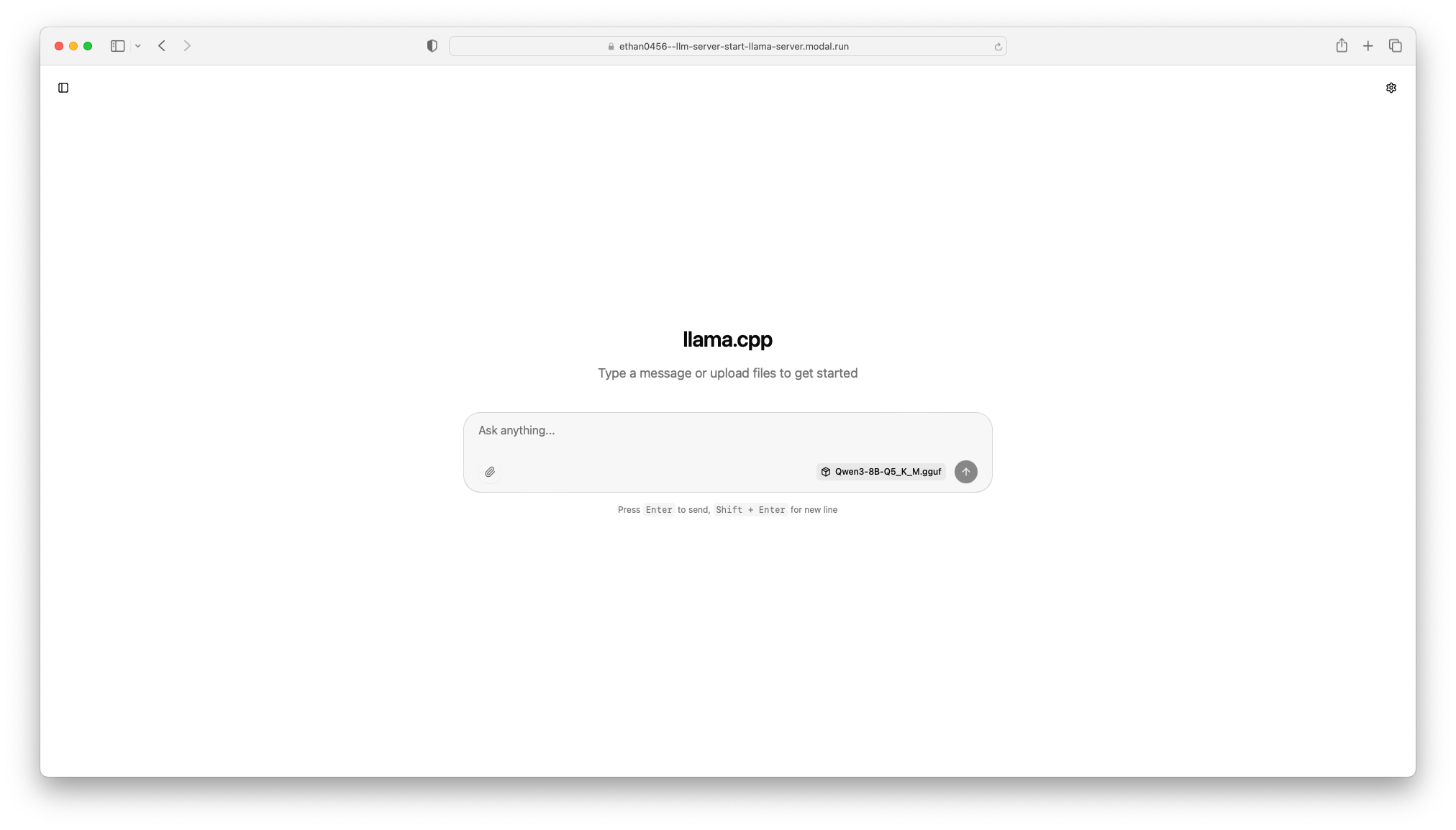
Llama.cpp UI can be accessed by visiting the web endpoint in your browser.
Performance & Operational Observations (Sanity Check)
This post focuses on correctness and architecture rather than optimization. I ran a few quick sanity checks to ensure the system behaves as expected and surface obvious bottlenecks. These are ballpark observations, not rigorous benchmarks.
Setup
- Model: Qwen3-8B (Q5_K_M)
- GPU: NVIDIA L4 (Modal)
n-gpu-layers=9999- Single request, no batching
Cold starts
- First request after scale-to-zero (or
min_containers=0) takes ≈20s to return the first successful token. Dominated by container startup, CUDA initialization, and model load from volume. During this window, the Llama server accepts HTTP connections but returns 503 (“Loading model”) until the model is ready. Client retries are required. - This latency is acceptable for internal tools but too high for latency-sensitive APIs without warm containers.
Time to first token (warm)
- Subsequent requests return the first token in ~12 s, faster than cold-start, mostly dominated by prompt evaluation and KV cache allocation.
VRAM usage
- Model occupies 6.3GB of VRAM on load, which comfortably fits within 24 GB L4 VRAM and leaves plenty of headroom.
- GPU memory usage remains mostly constant during inference because the weights are preloaded, but compute utilization spikes to ~97–98 % while processing requests, indicating active inference.
Concurrency
- Increasing concurrency shows non-linear latency growth (≈10–23 s per request across 1–8 concurrent requests) as requests compete for GPU compute (~97–98 % utilization).
These observations match expectations for llama.cpp on a single GPU. A deeper dive into cold-start mitigation, throughput, VRAM profiling, and scaling behavior will be covered in a follow-up post. Early numbers provide a sanity check, but much remains to explore.
Conclusion + next steps
You have now learned how to host an LLM on Modal’s GPU using llama.cpp. However, this setup is still a far cry from a production-ready LLM deployment. Some potential next steps to explore include:
- Support to run multiple models
- Recent versions of
llama-serverinclude a router mode that can handle multiple models through--models-dirflag. We can provide a directory containing.ggufmodel files and--models-maxto specify the max number of models to load simultaneously. - I didn’t use this approach because more models require more GPU and hence more cost. This meant I would require
A100orH100like GPUs per container. Using such models would make my free credits disappear. Another reason is running multiple models on single GPU leads to GPU fragmentation where the GPU memory becomes broken into many small, non-contiguous free blocks, so even if the total free VRAM looks sufficient, large allocations fail or run inefficiently. - Another way is to have single server per container. This approach is better than having a large GPU and running multiple LLMs in one. You can run small models with L4 GPU and medium models on A100. But it has the same limitation that you need to know the models you want to create server for at deployment.
- Recent versions of
- Support for non-
gguffilesllama.cppprovidesconvert-hf-to-gguf.pyscript to convert raw Hugging Face format model to.ggufformat and apply quantization of your choice. You can updatedownload_model_fileto allow converting a Hugging Face model to given quantization.
References
Modal’s guide to Run large and small language models with llama.cpp was a helpful reference while developing the PoC section of this write-up.